Google has rolled out another important update, and this one brings Google Keep to Google Messages. Here's everything you need to know about this integration and why I think it's a great capability to have.
Access Google Keep directly in Google Messages
Google recently announced the September 2026 Android Drop, and it comes with some really cool features like motion assist. However, the one capability that I really like is the Google Keep integration in Google Messages, as I use both the apps almost daily on my Pixel 10. It makes sure that you can share your Keep notes with another person through the messaging app.
The best part is that you don't have to leave Google Messages to share your Keep notes. This new capability is compatible with both individual and group chats and relies on the same account you use for RCS to create or share Keep notes.
I see myself using this new integration a lot, as it eliminates the hassle of switching between the Keep and Messages apps when I am planning something. For instance, you can share a Keep note in your friends' Messages app group containing a checklist of items that they need to buy for your trip. Once a particular item has been purchased, the related person can checkmark the box next to the name of that item.
Recommended For You
Which Google Messages shortcut do you find most useful?
31 Votes
Here's how to use Google Keep in Google Messages
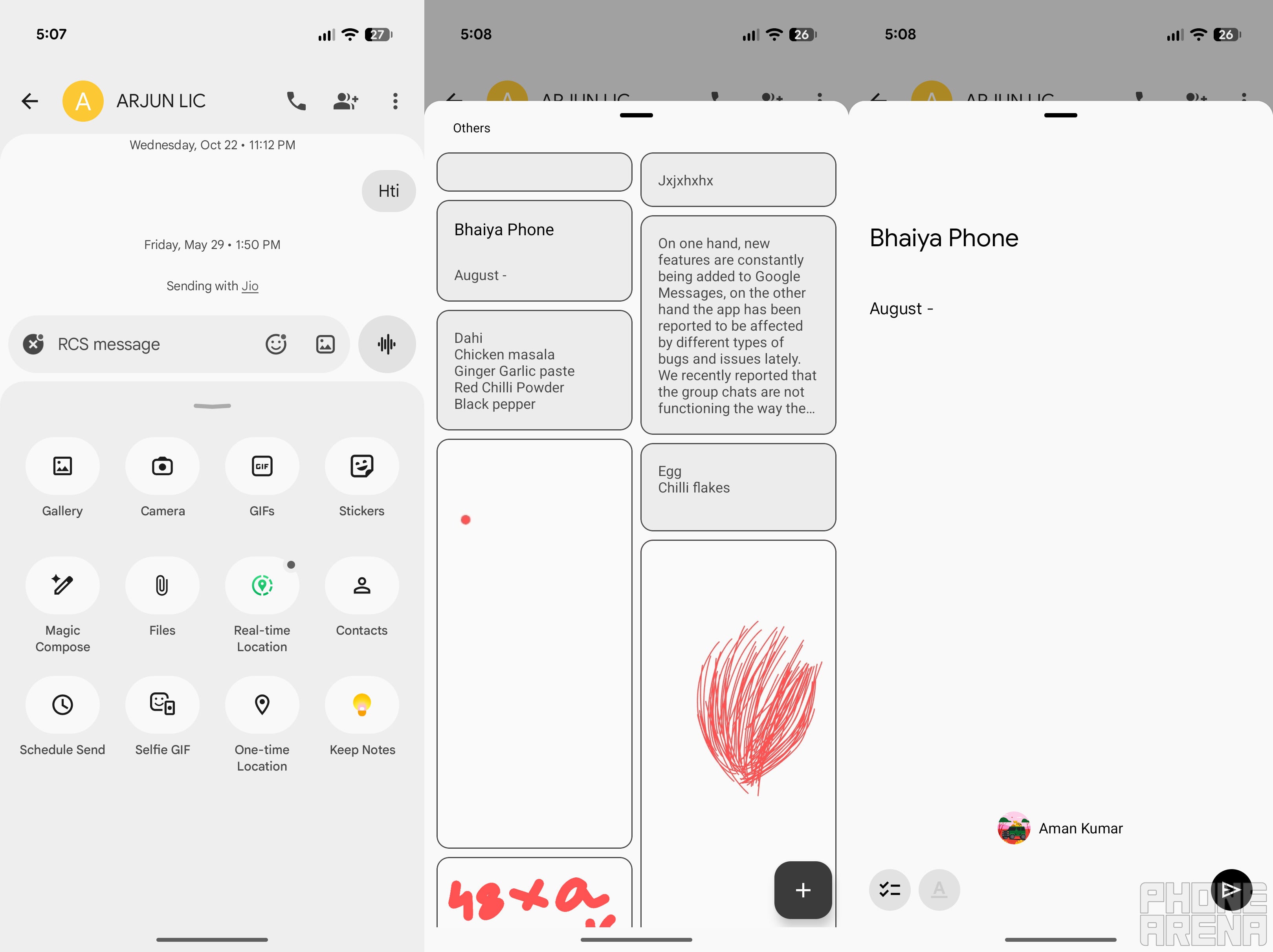
Google Keep integration in Google Messages. | Image by PhoneArena
Before you begin, make sure you have the latest Google Messages and system update installed. After that, open the chat where you want to send the Keep note, and then follow the steps below:
Tap the plus icon that appears in the text field, and choose the Keep Notes icon.
You can now select one of the existing notes, or you can tap the Create a note button to start a new note.
You will then be shown a preview of the selected note, where you will have the option to edit the content if you want.
Once you have made the required changes, you can hit the Send icon in the bottom right corner.
It's worth noting that the other person won't be able to access the shared Keep note right away. Once they tap on it, you will receive a collaboration request, which you will need to accept for the other person to access the shared note. The collaborators will then be able to make edits to the note.
There's a big catch
There is a big catch, which I noticed while using this capability on my phone. Unlike normal messages, the shared Keep note can't be deleted from the conversation in Google Messages. The only option you have is to open the Google Keep app and manually remove the collaborator.
Unfortunately, even after doing that, the Keep note message will still appear in the conversation, and the other person can tap on it again to send you the collaboration request. The only good thing is that they won't be able to access the note until you accept their request.
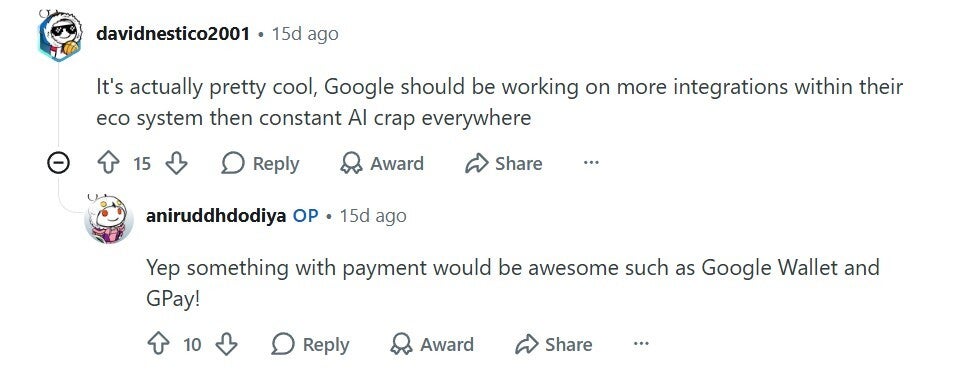
User liking Google Keep integration in Messages. | Image by Reddit
All that said, most users are apparently liking this change. A Reddit user commented under a relevant post that the Big G should focus more on such integrations instead of introducing unnecessary AI crap.
A small, but very important, feature
As mentioned above, I have been regularly using this new feature ever since it was introduced. I recently used it to share the grocery checklist with my room partner, where she checked the box next to the item she had purchased. That said, the integration works with non-RCS chats as well.
If you share a Keep note through the Messages app to a non-RCS chat, everything will behave as mentioned above on your end, but when the other person taps on the received note, they will be taken to the Google Keep app installed on their smartphone. They will then have to request access to edit the note.
Read more about the recent development in Google Messages:
Follow me on Threads and X for regular tech insights.
Six-month unlimited plan is now 57% off
$90
$210
$120 off (57%)
Mint Mobile is now allowing you to get whichever plan you like for either three, six, or 12 months for just $15/mo. If you go for the six-month unlimited service, for instance, you'll now have to pay just $90 upfront instead of $210.
Aman Kumar is a news writer at PhoneArena covering Google Pixel phones, Android features, AI-powered smartphone tools, and mobile tech news. Before joining PhoneArena, he spent over five years writing about consumer technology for publications like MakeUseOf, How-To Geek, and Guiding Tech. His current daily drivers are the Pixel 10 and Samsung Galaxy S26 Plus, while his red iPhone SE (2nd gen) remains a personal favorite. Aman also appreciates bold smartphone experiments and still considers the Nokia N-Gage one of the industry’s most iconic designs.
A discussion is a place, where people can voice their opinion, no matter if it
is positive, neutral or negative. However, when posting, one must stay true to the topic, and not just share some
random thoughts, which are not directly related to the matter.
Things that are NOT allowed:
Off-topic talk - you must stick to the subject of discussion
Offensive, hate speech - if you want to say something, say it politely
Spam/Advertisements - these posts are deleted
Multiple accounts - one person can have only one account
Impersonations and offensive nicknames - these accounts get banned
To help keep our community safe and free from spam, we apply temporary limits to newly created accounts:
New accounts created within the last 24 hours may experience restrictions on how frequently they can
post or comment.
These limits are in place as a precaution and will automatically lift.
Moderation is done by humans. We try to be as objective as possible and moderate with zero bias. If you think a
post should be moderated - please, report it.
Have a question about the rules or why you have been moderated/limited/banned? Please,
contact us.









Things that are NOT allowed:
To help keep our community safe and free from spam, we apply temporary limits to newly created accounts: